The Ultimate Screen Recorder for Creators.
Capture stunning 4K screen video, webcam, and studio-quality internal audio directly from your browser. The easiest way to record YouTube reaction videos, online courses, and faceless channels. Fast, easy, and no downloads required.
Flexible Screensharing: Facecam or Faceless
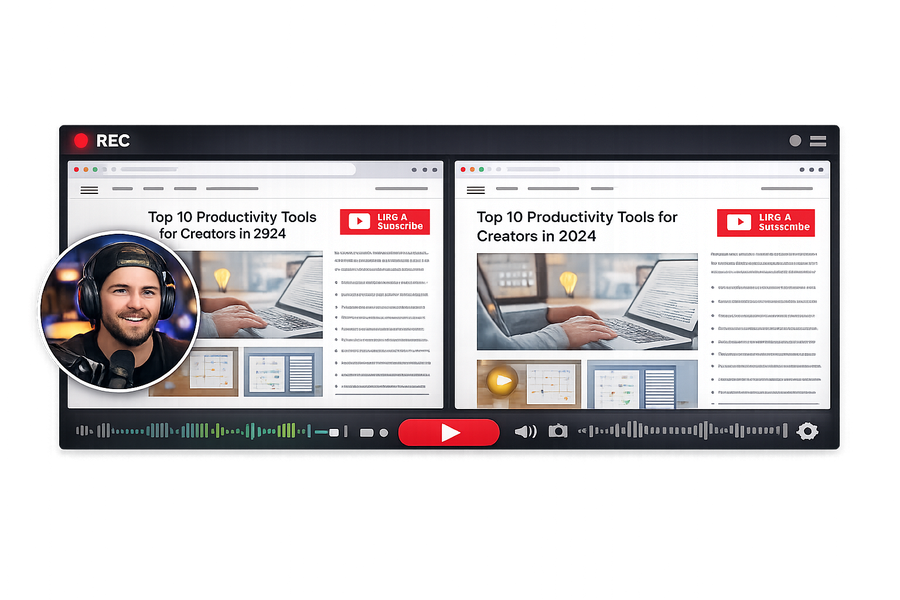
Whether you are building a personal brand with our sleek circular webcam overlay or creating entirely faceless content, Podsplice gives you total control. Record your screen in flawless 4K while seamlessly capturing your system audio at the same time. It's the perfect, hassle-free setup for software tutorials, gameplay, and presentations.
Record Reaction Videos with Flawless YouTube Audio
Stop fighting with complicated audio routing, missing drivers, or silent screen captures. Podsplice natively records system audio, making it incredibly easy to capture YouTube videos with perfect internal sound while you react. Whether you want your face on camera or want to learn how to make faceless reaction videos, our platform syncs your commentary perfectly with the source video.
Studio-Grade Audio (No Engineering Degree Required)
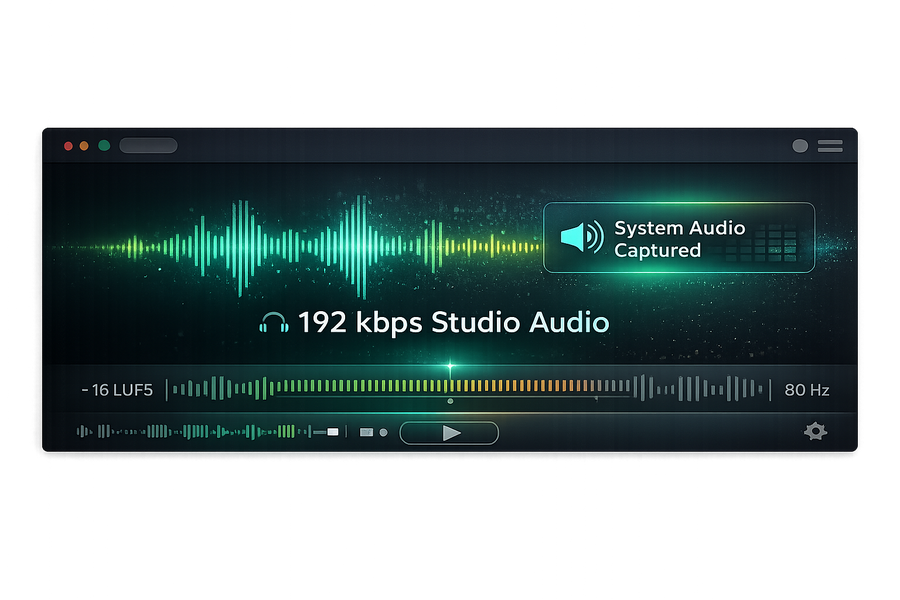
Don't let compressed, amateur sound ruin your video's retention rate. Podsplice is the best screen recorder for audio quality, bypassing standard compression to export at a pristine 192 kbps. We automatically apply professional mixing standards behind the scenes—including -16 LUFS normalization and an 80Hz High-Pass filter—so your voice sounds rich, clear, and perfectly leveled for YouTube.
Ultimate Control with Separate Audio Tracks
Never worry about a loud YouTube video or game audio overpowering your microphone again. Podsplice automatically records everything on separate, discrete tracks: your microphone, your screen/system audio, and your webcam. This multi-track capability gives you complete freedom in post-production to adjust volumes independently, ensuring a polished, professional final cut without the traditional headache.
Grow your channel with Podsplice
Join the Podsplice community and start publishing professional content directly to your YouTube channel.
Frequently Asked Questions
Solving the biggest headaches in content creation.
Why does my screen recording audio slowly go out of sync (audio drift)?
Audio drift happens for three main reasons. First, standard desktop recorders drop video frames when your computer gets stressed, creating a Variable Frame Rate (VFR) while your audio keeps recording at a constant speed. Second, a sample rate mismatch (like your mic at 44.1kHz and software at 48kHz) creates a 'clock mismatch' that adds up to seconds of delay over an hour. Finally, hardware timestamps from USB mics or capture cards can jitter when your computer's USB bus gets crowded.
How can I permanently fix audio drift in my screen recordings?
The permanent fix is to use a 'browser-native' screen recorder like Podsplice. Because it lives inside browsers like Chrome, Edge, or Safari, it uses the browser's Master Media Clock instead of shaky hardware timestamps. It assigns a universal timestamp to every frame and audio millisecond at the exact moment of capture, locking the sync at the source. It also exports files in a Constant Frame Rate (CFR) by default, meaning your editor will play it back perfectly in sync.
Why is my screen recording audio so quiet and muffled?
The most common cause of quiet audio is 'Audio Smushing'. Basic recording tools merge your microphone and system audio into a single track, squashing the peaks of both sounds so they don't distort or clip. This results in a weak, muffled recording. Many free tools also record at a very low bitrate (like 64kbps or 96kbps) to save space, which throws away the warmth and clarity of your sound.
What is the difference between 'System Audio' and 'Internal Audio'?
System audio and internal audio mean the exact same thing. 'Internal audio' is the traditional term used by Mac and PC creators, while 'System audio' is the official term Google uses within the Chrome browser and ChromeOS. Both refer to the digital sound coming from inside your computer, such as a YouTube clip, a Zoom call, or video game sounds.
How do I record system audio on a Mac without BlackHole or virtual drivers?
The easiest way to bypass the macOS audio trap (especially on macOS Tahoe) is to stop using legacy virtual drivers entirely and record directly in your browser using Podsplice. Podsplice uses Apple's native ScreenCaptureKit directly in the browser, allowing you to capture system audio with zero downloads, zero admin passwords, and zero driver installations. You can simply toggle 'System Audio' to ON in the browser pop-up.
Does Canva's screen recorder capture system audio?
No, Canva's screen recorder does not have the capability to record system audio. While it allows you to record your face, your screen, and your microphone, it cannot capture the internal sound coming from your computer, like a YouTube video playing on your screen.
Why are separate audio tracks important for screen recording and reaction videos?
Separate audio tracks give you ultimate editing flexibility. If your software mashes your microphone and computer sound into one track, you cannot fix it later if the video is too loud and drowns out your voice. By recording separate tracks for your mic and system audio, you can perfectly balance your commentary against the video in post-production by lowering the video volume and boosting your own voice.
What is the best way to record a YouTube reaction video?
The easiest way to make a YouTube reaction video is with a browser-based tool like Podsplice. It captures your screen, your face cam, your microphone, and the system audio from the browser tab all at once on separate tracks. This allows you to talk over a YouTube video while ensuring your viewers can clearly hear both your commentary and the original video's sound.
Can I make faceless YouTube reaction videos?
Yes, faceless reaction channels are highly scalable and a great way to protect your privacy. The secret to a successful faceless reaction video is recording your voice and the video's internal sound on completely separate audio tracks. With Podsplice, every track is recorded separately, giving you total control to export your video without your webcam track.
What is the best screen recording software for creating online courses (Udemy, Teachable)?
Podsplice is the best and easiest screen recording software for recording online courses. Course creators often need to teach using slides, browser tabs, or software demos, requiring clear capture of both their voice and the computer's system audio. Podsplice captures your screen, webcam, mic, and system audio cleanly in one pass, without complicated audio routing.
Why is Loom bad for recording reaction videos or system audio?
Loom is built for quick workplace communication, not for the 'Speak and Listen' workflow needed for reaction videos. It merges your voice and the system audio into one file, meaning you cannot fix the audio balance later. Furthermore, Loom's audio engine 'ducks' your microphone whenever the system audio gets loud, causing your voice to sound blurry or cut out entirely.
How do I record my Chromebook screen with internal audio?
Because most Chromebooks are 'admin-locked,' teachers and users cannot install third-party drivers or complex software like OBS. The easiest way to bypass this is using Podsplice, which runs entirely in the browser and requires zero installation, making it work on any school-issued device. You simply click 'Entire Screen' and turn on the 'Also share system audio' toggle.
What is "Double-Ender" podcast recording?
A 'Double-Ender' is the 2026 professional standard for remote podcasting. Instead of recording a guest over a standard, laggy internet call, software like Podsplice records the raw audio locally on your computer and your guest's audio locally on their computer simultaneously. This ensures that even if the live connection lags or sounds choppy, the final files are studio-perfect because they were captured locally before traveling across the web.
Can I record a two-person remote reaction video?
Yes, you can record a two-person reaction video with a remote guest where you both watch and react to the exact same YouTube clip in real-time. While tools like Riverside and Descript struggle to record the system audio during screen shares, Podsplice handles this by recording 6 distinct tracks locally: both webcams, both local mics, the shared screen, and the system audio.
How do I easily turn a long-form podcast into YouTube Shorts?
The most efficient way is to use a tool with built-in vertical repurposing like Podsplice. It automatically takes your horizontal screen recording and flips it into a vertical 'Stacked' layout, keeping both faces visible. It also uses AI to transcribe your video and add 'Karaoke' style subtitles that highlight each word as it is spoken, keeping the viewer's eyes locked on the screen.
How does Podsplice guarantee professional audio quality automatically?
Podsplice acts as an invisible sound engineer by automating the professional 'Order of Operations'. First, it uses a True Peak Limiter set to -1.0 dB to tame sudden loud peaks and prevent clipping. Next, it applies an 80Hz High-Pass Filter to vacuum up low-frequency background 'mud' like air conditioners. Finally, it automatically normalizes the overall export to the professional YouTube standard of -16 LUFS.
Why is 192 kbps audio the "Gold Standard" for screen recordings?
Many free tools record audio at low bitrates (like 128 kbps), which squeezes your voice and makes it sound metallic or 'tinny'. In 2026, fast internet speeds mean you can use a higher bitrate; 192 kbps is the modern gold standard for professional voice recording because it gives your voice warmth, bass, and crisp clarity. Podsplice captures audio at a locked 192kbps bitrate natively.
Why is recording an audio-only podcast better as an MP3 rather than an MP4?
When you use software that produces an MP4 for an audio-only podcast, it records a 'blank' video file that steals part of the 'bitrate budget' to process black pixels. When you record natively to an MP3, every single bit of data is dedicated to the nuances of your voice. This results in a file that is 1/10th the size of a blank MP4 but features superior audio clarity.
What are the highest-paying niches for a YouTube reaction channel?
Ad revenue is determined by the audience demographic (like age and disposable income), not necessarily the content topic. High-value niches that attract high-CPM advertisers include Finance & Investing, Tech Reviews & Specs, News & Current Events Commentary, Humor/Skit Commentary targeted at older demographics, and Educational/Skill Content for professionals.
What is the "Episode -1" theory for starting a podcast?
The 'Episode -1' theory helps overcome 'analysis paralysis' and the procrastination of trying to build a perfect studio. The first step isn't picking a niche or designing a logo; it's simply hitting record to see how you look and sound without the pressure of publishing it. Once you hear your voice and realize the world won't end if a dog barks, you build the momentum to actually start creating.