Why Your Screen Recording Has No Sound (And How to Fix It)
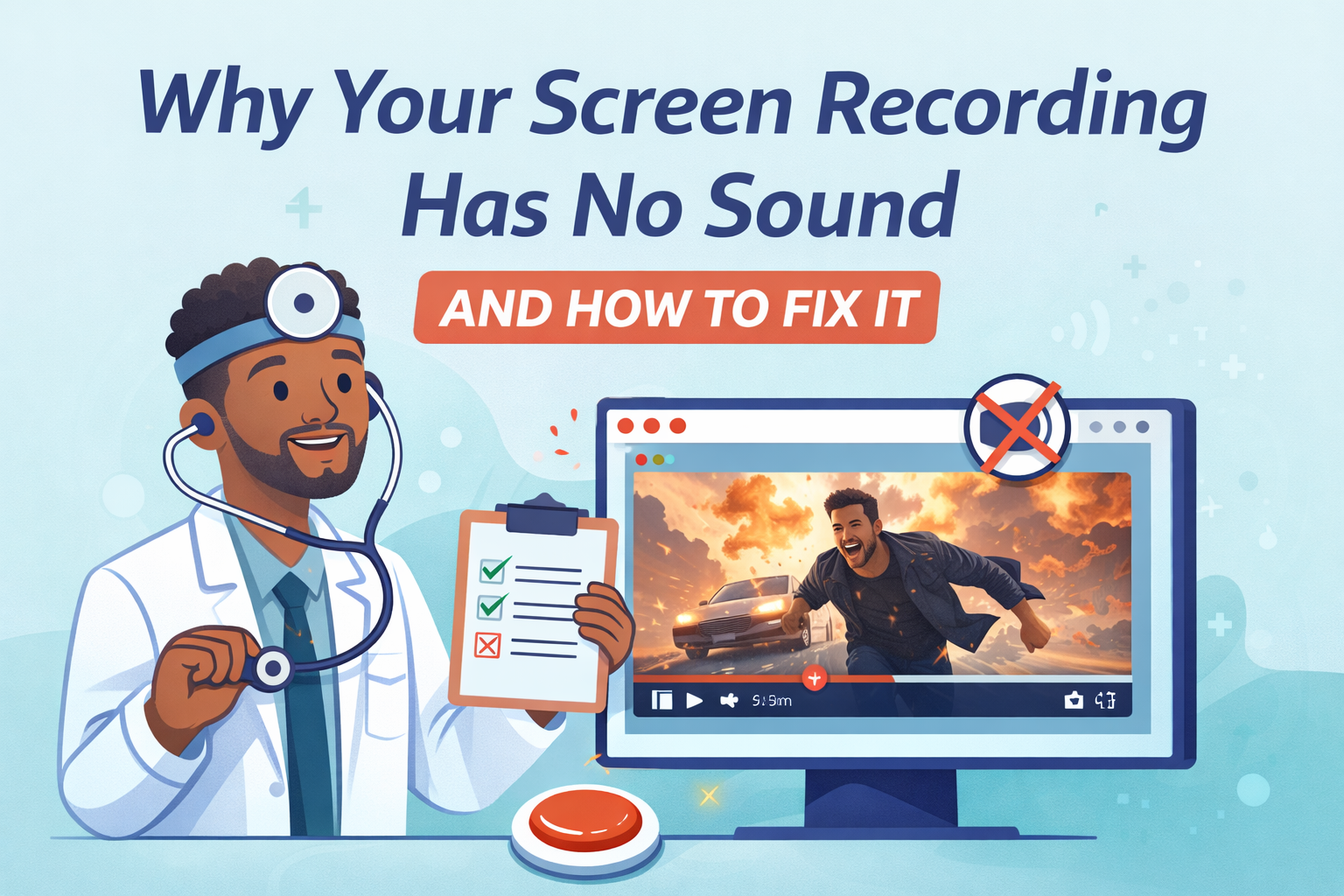
Quick answer: Your screen recording has no sound because most tools don’t capture system audio—the actual sound coming from your computer. Think YouTube video sound, music from Spotify, voices on Zoom, or audio from a webinar. Most recorders only grab your mic, not the system audio. The easiest fix is Podsplice, which records mic, camera, screen, and system audio all together, right in your browser.
What Is System Audio (and Why It Matters)?
System audio is anything your computer is playing back:
The sound from a YouTube video
Background music from Spotify or Apple Music
A colleague’s voice on a Zoom call
Audio from a game or webinar
If your screen recorder doesn’t capture this, you’ll end up with a silent file (or just your own voice). For reaction videos, tutorials, and presentations, system audio is what makes the recording make sense.
Why Most Screen Recorders Skip It
QuickTime on Mac: Records the screen + mic, but not system audio unless you install plugins like Soundflower or BlackHole.
OBS Studio: Can capture system audio, but requires complex setup and eats resources.
Browser tools (Canva, Riverside, Descript, Loom): Record webcam + mic, but skip system audio completely.
That’s why so many recordings look fine but sound empty.
Why Capturing System Audio Is Harder Than You’d Guess
Browsers and operating systems lock down access to internal audio for privacy and copyright reasons. Even if a tool can grab it, syncing mic + camera + screen + system audio without drift is technically tricky. Most products take the easy path and skip it altogether.
The Fix: Use a Recorder That Captures Everything
Podsplice was built to handle this:
🎤 Mic (your voice)
📷 Camera (your face)
🖥️ Screen (what you’re showing)
🔊 System audio (YouTube, Zoom, Spotify, games, webinars)
All recorded locally, in high quality, synced automatically.
Want the Step-by-Step?
For a full walkthrough on making reaction videos that include system audio, check out:
How to make a reaction video
Bottom Line
If your screen recording has no sound, the problem isn’t you — it’s your recorder. QuickTime, Canva, Riverside, Descript, and Loom all miss system audio. Podsplice captures everything in sync, in any browser, with no plugins or setup required.

About the Author
Andrew Best
Andrew Best is an entrepreneur, educator, and AI expert with over two decades in online marketing. He co-founded China232 — a podcast and learning platform with 10M+ downloads — and later 88Herbs, a premium supplement company. Andrew now focuses on helping creators leverage AI for podcasting, screen recording, and YouTube content through Podsplice.
More from Podsplice
Screen Recording Software for Shopify: The Easiest Way to Get Free Organic Traffic & Sales
Article
How to Record YouTube Audio in a Reaction Video on Mac (Without QuickTime or Plugins)
Blog
What LUFS Should I Use for Podcasts and Screen Recordings?
Blog
What Screen Recording Software Do Journalists Use? (Best Recording Software for Investigative Reporters in 2026)
Blog
How to Record Screen with System Audio (Windows + Alt + R + Better Alternative)
Article
Start Recording in Seconds
No downloads. No setup. Just hit record and share your story with the world in studio quality.
Looking for a Screen Recorder or Remote Recording tool?